Templates vs autocorrects - when you should use them
By the end of this article, you'll know exactly when to reach for a template and when to use an autocorrect - so you build your PhraseExpander library the right way from the start.
Templates vs Autocorrects
PhraseExpander has two tools for automating text: templates and autocorrects. They both save you keystrokes, but they work in slightly different ways and shine in different situations. Picking the right one for the job means your library works with you seamlessly - so it's worth understanding what each tool is designed for before you start building.
Templates
A template is a piece of text you insert on demand by typing a short abbreviation. Templates can be short or long, and unlike autocorrects, they can contain formatting, fill-in fields, and macros - making them suitable for everything from a simple email sign-off to a complex dynamic clinical note.
When to use them: any time you want to choose when to insert a piece of text; they are triggered by typing a confirmation key. Because templates can be inserted via simulated typing or via the clipboard, they are fast and reliable even in remote desktop or Citrix sessions.
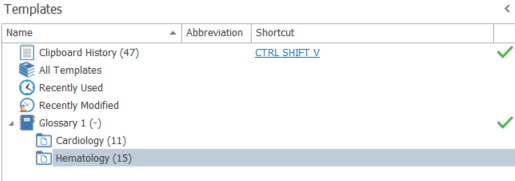
Templates live inside template glossaries in the Glossaries pane. You can organize them into groups within each glossary.
The glossary pane
How to create a template
Click New Template in the main window
Paste or type your text into the Quick Edit Contents field
Set a short abbreviation (e.g. tyfm for "Thank you for your message")
Test it in the Test Pad
Shortcut: select any text in any app and press CTRL+SHIFT+W to create a template from it instantly.
How to trigger a template
As you type, PhraseExpander shows abbreviations of matching templates in a suggestions window. You then trigger the one you want explicitly by pressing the confirmation key (SHIFT by default). Alternatively, you can enable instant execution on a template so it expands immediately as soon as the full abbreviation is typed - no confirmation needed.
Type an abbreviation and confirm to launch a template
Other ways to trigger a template:
Keyboard shortcut: assign a key combo (e.g., CTRL+SHIFT+F4) directly to the template
Quick Find: press ALT+SPACE, search by name, press SHIFT to insert
Autocorrects
An autocorrect is a pair: a misspelling and its correction. The moment PhraseExpander detects the end of a word (space, punctuation, or newline), it silently replaces the typo with the right text - no keypress needed.
When to use them: Correcting common spelling mistakes as you type, or expanding short acronyms into their full form — anything small and automatic that you never want to think about.
Unlike templates, autocorrects cannot contain macros or formatting — they are plain text only. They are also best kept short: the corrected text is sent by simulating keystrokes, so long replacements can be slow or unreliable.
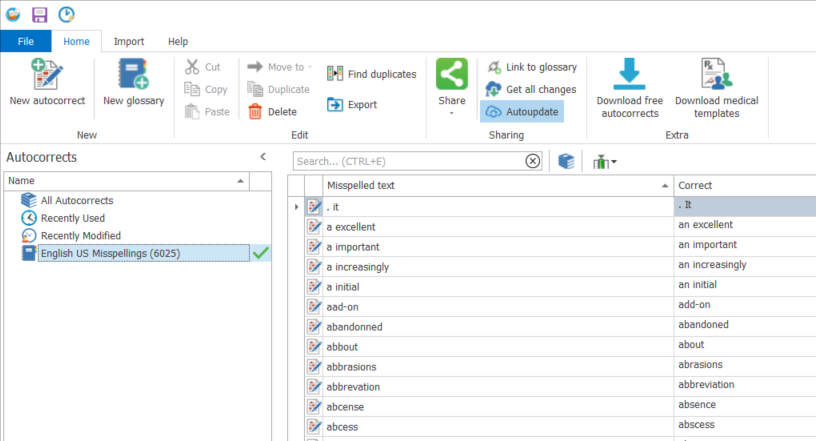
Autocorrects live inside autocorrect glossaries — a separate glossary type that appears in the same Glossaries pane.
You can install ready-made libraries for English and other languages (Home tab → Download free autocorrects), or add your own entries one by one.
PhraseExpander Autocorrects pane
How to create an autocorrect
In the Glossaries pane, click Autocorrects
Click New Autocorrect
Enter the misspelling and the correct text
Test it in the Test Pad by typing the misspelling followed by a space
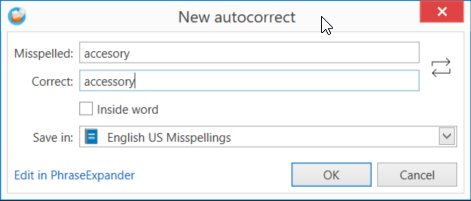
Shortcut: select a misspelled word anywhere and press CTRL+SHIFT+Q to create an entry on the spot.
Adding a new autocorrect with CTRL+SHIFT+Q
How autocorrects are triggered
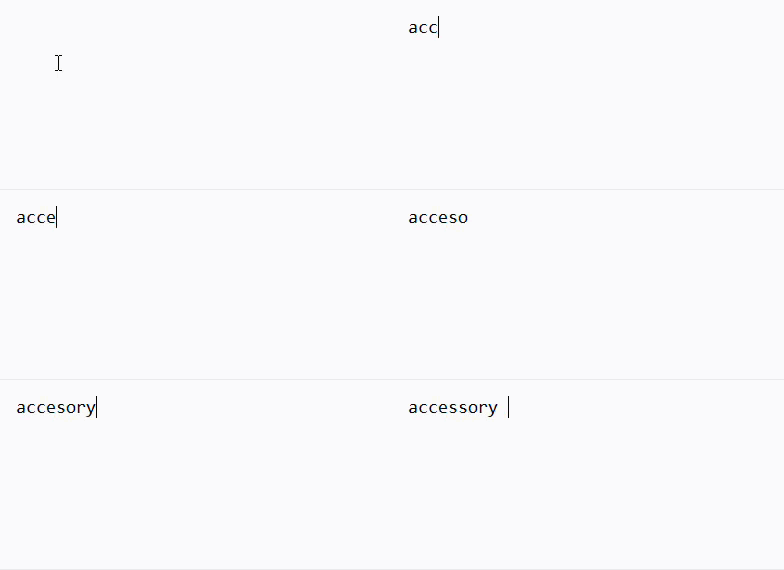
Automatically, in the normal flow of writing - no action needed. PhraseExpander expands the entry as you type, either at the end of the word (on space, punctuation, or newline) or mid-word if the Inside word option is enabled.
Automatically correcting a spelling mistake
At a glance
Templates
Autocorrects
What it does
Inserts text on demand
Silently replaces text as you type
Triggered by
You — confirmation key or instant execution
PhraseExpander — automatically on word boundary
Text length
Short or long
Short only
Can contain
Plain text, formatting, macros, fill-in fields
Plain text only
Inserted via
Simulated keystrokes (short text) or clipboard (longer text) — reliable in any app, including remote desktop
Simulated keystrokes — best for short replacements
Use it for
Email replies, clinical notes, boilerplate blocks, dynamic forms, and any text you want to insert deliberately
Fixing consistent typos, expanding short acronyms, small automatic substitutions
Lives in
Template glossary
Autocorrect glossary
Create via
New Template / CTRL+SHIFT+W
New Autocorrect / CTRL+SHIFT+Q
Did this answer your question?Thanks for the feedbackThere was a problem submitting your feedback. Please try again later.